Open your Google Form
Create or open the Google Form whose submissions should be filtered before they reach Slack.
Install and open FormAlert from Forms
Install the add-on, reload the Form editor, then launch FormAlert from the top-right add-on button.
Get FormAlert AppCreate a Slack Incoming Webhook
Create an Incoming Webhook in Slack, copy its URL, and paste it into FormAlert. Save and test the connection.
Configure Message or Payload Mode
Use Message Mode on every active plan. Standard can also paste JSON from Slack Block Kit Builder into Payload Mode. Insert fields such as {{Name}} or {{Budget}}.
Write a readable Slack message with Form question variables.
Validate official Slack Block Kit payload JSON before sending.
Create a Standard Filter Rule
On Standard, choose a field, select equals, contains, or greater than, then enter the value that should trigger Slack. Free sends without Filter Rules.
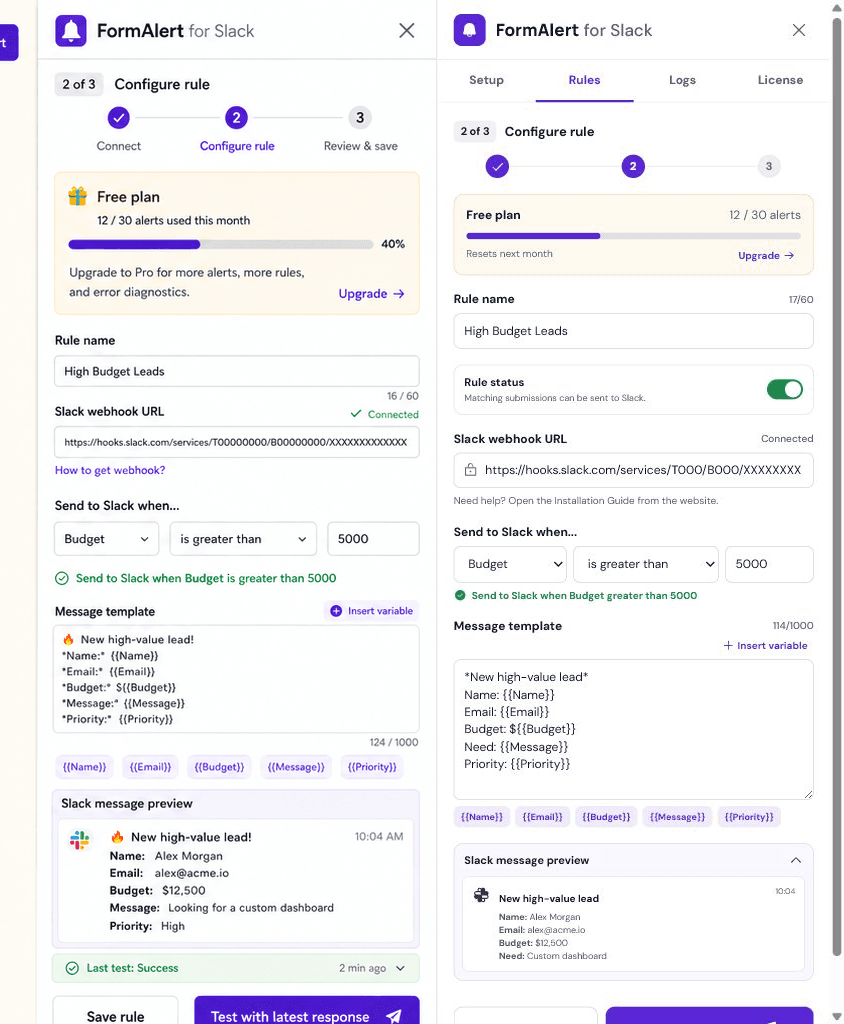
Test the latest response
Run the current rule against the latest response. FormAlert shows whether it matched, renders the message, and sends the test directly to Slack.
Enable automatic alerts
Save your first Form alert. FormAlert enables automatic delivery so each new response is filtered automatically.
Troubleshoot common errors
Check the next action shown in the add-on when a Webhook, field, payload, License Code, or trigger needs attention.
- Confirm the Webhook starts with https://hooks.slack.com/services/
- Refresh fields if Form questions changed
- Validate Payload JSON after inserting variables
- Submit one Form response before using Send Test
- Open Support if a License Code needs replacement